
DaisyDisk Review
If your Mac constantly says “Storage Almost Full” and you have no idea what’s eating space, DaisyDisk is one of the best tools available for quickly finding huge files, forgotten folders, caches, videos, backups, and hidden storage junk.
Unlike traditional cleaners that bombard you with “optimize now” buttons, DaisyDisk focuses on one thing extremely well: visualizing your storage so you can manually decide what to delete. It’s fast, lightweight, beautiful, and surprisingly addictive to use.
What Is DaisyDisk?
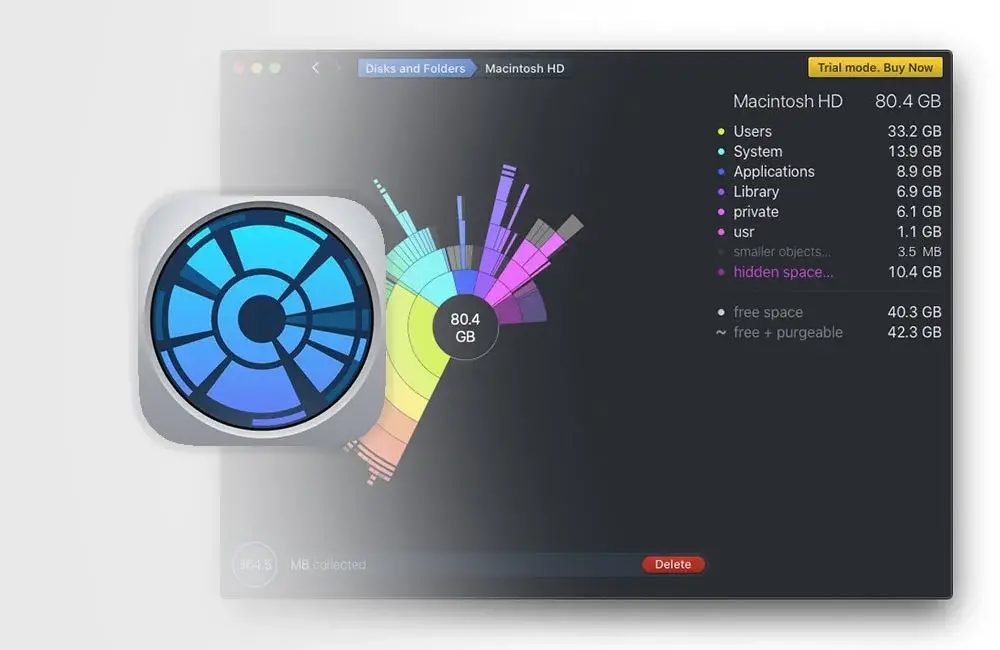
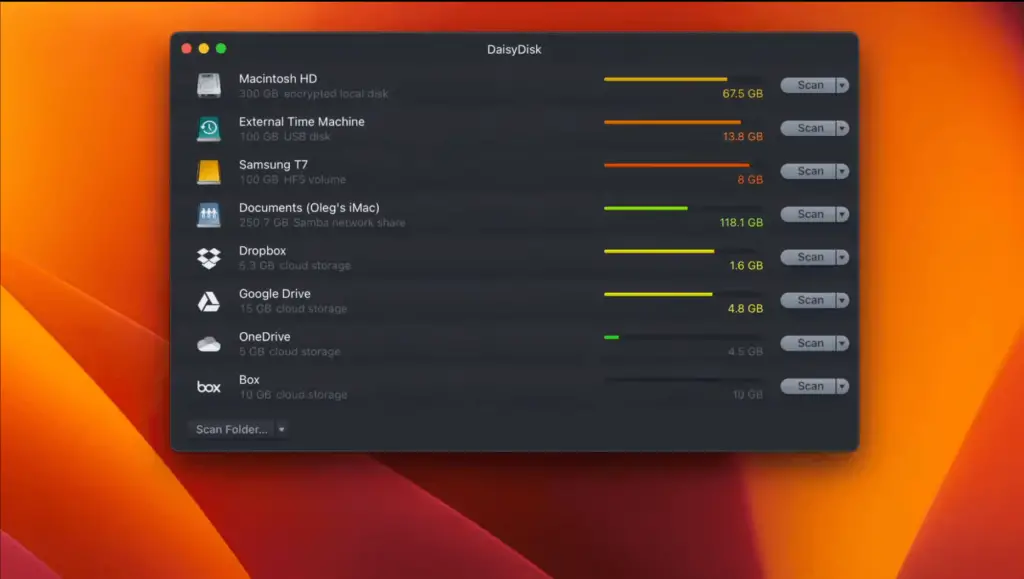
DaisyDisk is a paid macOS disk space analyzer that scans your drives and displays them as a colorful interactive map. Large folders instantly stand out, making it easy to identify what’s taking up storage.
It works with:
- Mac internal SSDs
- External hard drives
- USB drives
- Network drives
- Some cloud storage folders
The app is especially popular among:
- MacBook Air users with small SSDs
- Video editors
- Developers
- Photographers
- People dealing with “System Data” storage issues
Main Features
1. Interactive Storage Map
This is the core feature.
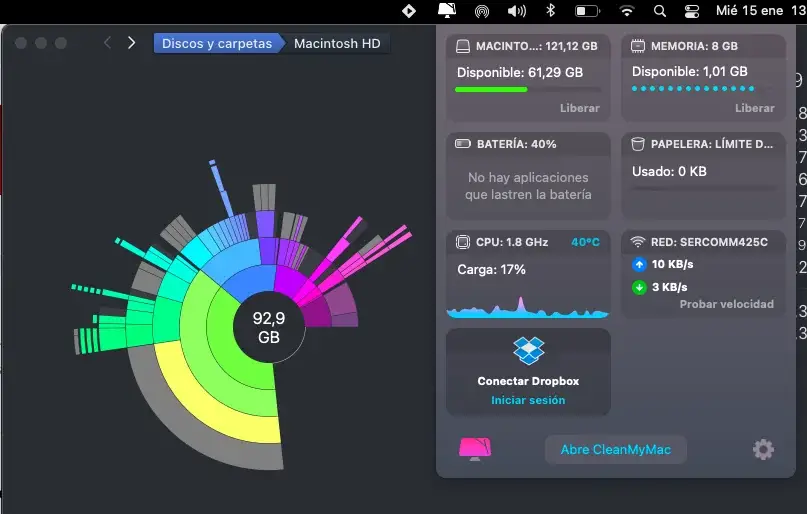
DaisyDisk creates a “sunburst” visualization where:
- Bigger files/folders appear as larger segments
- Colors separate categories
- Clicking zooms deeper into folders
- You can instantly see storage hogs
It’s far easier than browsing Finder manually.
2. Extremely Fast Scanning
DaisyDisk is known for speed.
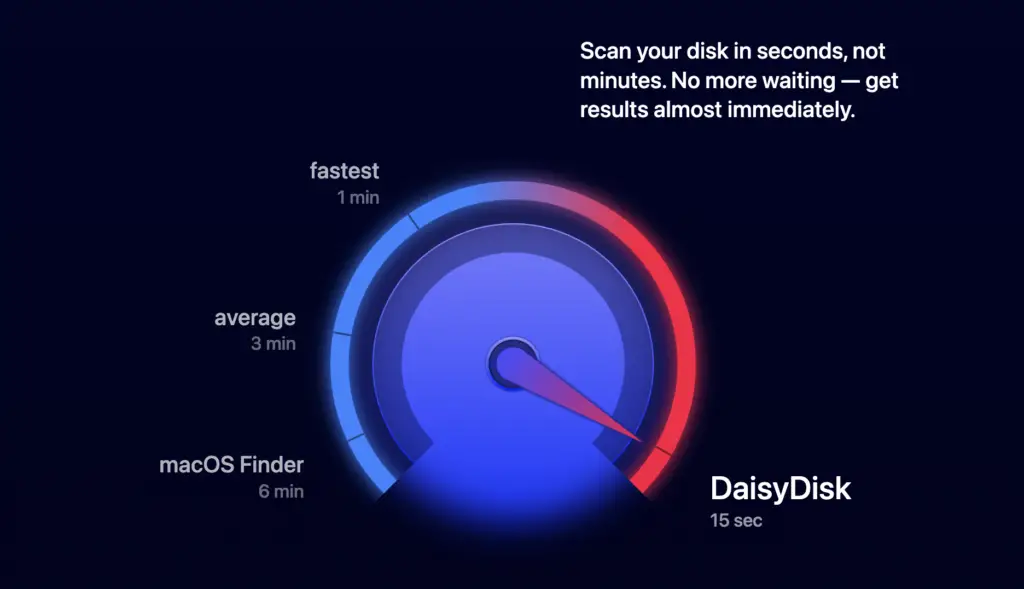
The developers claim scans can be 3–20× faster than competitors depending on the drive and file structure.
In real-world use:
- Small SSDs scan in seconds
- 1TB drives usually scan under a minute
- External HDDs take longer but remain responsive
3. Drag-and-Drop Cleanup
Instead of immediately deleting files, DaisyDisk lets you drag files into a collector area first.
That means:
- Fewer accidental deletions
- Easier review before cleaning
- Safer workflow
Then you permanently remove them afterward.
4. Quick Look Preview
You can preview files directly inside the app using macOS Quick Look.
Useful for:
- Videos
- Images
- ZIP files
- Downloads
- Random giant files you forgot about
5. Hidden Space Detection
One of the best features.
DaisyDisk can reveal:
- Hidden system caches
- Local backups
- “Other” storage
- Purgeable space
- Forgotten developer files
- App leftovers
This is often where people recover massive amounts of storage.
Pros & Cons
| Pros | Cons |
|---|---|
| Beautiful interface | macOS only |
| Extremely fast | No Windows version |
| Easy for beginners | Manual cleanup only |
| Lightweight | No automatic optimization |
| Excellent visual navigation | Limited system maintenance features |
| One-time payment | Some protected files require admin access |
Real-World Performance
DaisyDisk shines because it solves a very specific problem quickly.
Typical storage hogs users discover:
- Old iPhone backups
- Video exports
- Final Cut / Premiere cache
- Steam games
- Downloads folder junk
- Duplicate archives
- Xcode simulator files
- Docker containers
- Virtual machines
Many users report recovering 20–100GB+ after first use.
Is DaisyDisk Safe?
Yes — generally very safe.
Key reasons:
- No aggressive “registry cleaner” style behavior
- Manual deletion control
- Apple notarization
- No background bloat
- No forced subscriptions
However, you should still avoid deleting:
- System folders
- Unknown Library files
- macOS components
unless you understand what they do.
Pricing
Current pricing:
- $9.99 one-time purchase
- Lifetime license
- Use on up to 5 personal Macs
- No subscription
That pricing is honestly one of DaisyDisk’s strongest advantages in 2026, especially compared to subscription-heavy Mac utility apps.
DaisyDisk vs CleanMyMac
| Feature | DaisyDisk | CleanMyMac |
|---|---|---|
| Storage visualization | Excellent | Good |
| One-click cleaning | No | Yes |
| Malware tools | No | Yes |
| Performance optimization | No | Yes |
| Manual control | Excellent | Moderate |
| Price model | One-time | Subscription |
| Lightweight | Excellent | Heavier |
Choose DaisyDisk if:
- You want control
- You dislike subscriptions
- You only need storage cleanup
- You prefer lightweight utilities
Choose CleanMyMac if:
- You want automation
- You want malware scanning
- You want an all-in-one Mac maintenance suite

DaisyDisk vs Free Alternatives
DaisyDisk vs GrandPerspective
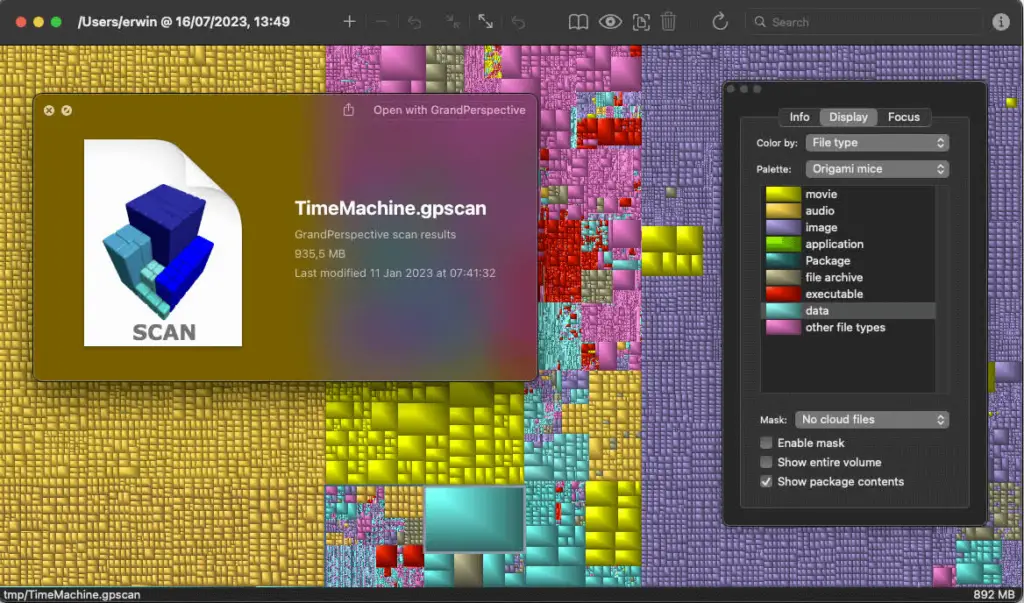
GrandPerspective is free and powerful but less polished visually.
Best for:
- Advanced users
- Free-only setups
DaisyDisk feels significantly more modern and beginner-friendly.
DaisyDisk vs OmniDiskSweeper
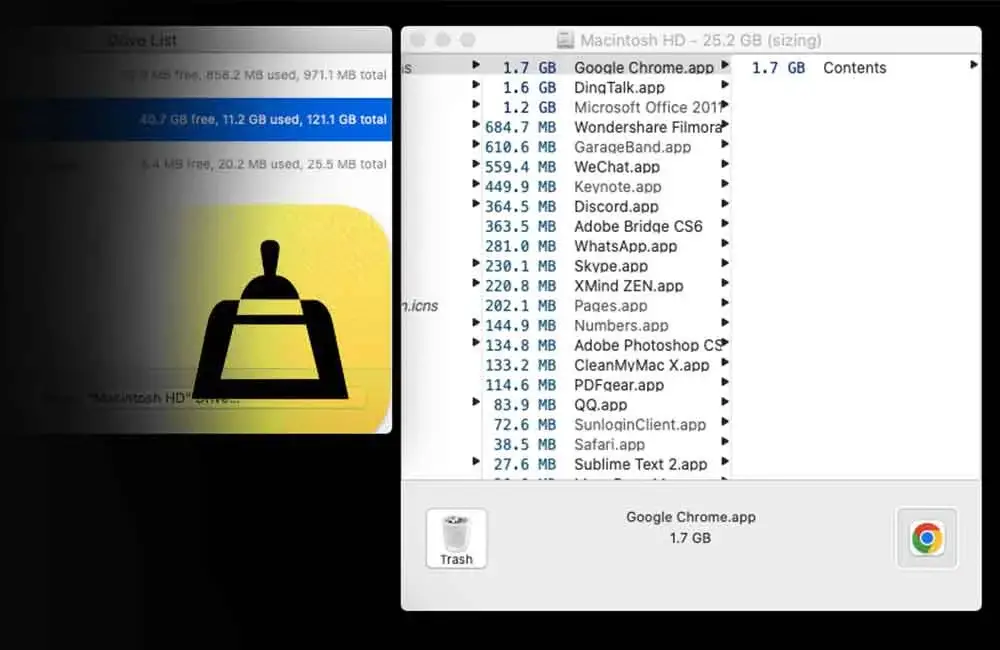
OmniDiskSweeper is fast and free but text-based.
Good for:
- Technical users
- Quick sorting by size
Bad for:
- Visual navigation
- Beginner usability
Who Should Buy DaisyDisk?
DaisyDisk is absolutely worth it if you:
- Own a MacBook with limited storage
- Edit videos/photos
- Constantly battle “System Data”
- Need to clean external drives
- Want a simple visual tool
- Prefer one-time purchases
It’s especially valuable on:
- 256GB MacBooks
- Older Macs
- M1/M2/M3 Air models with smaller SSDs
Who Should Skip It?
You may not need DaisyDisk if:
- You rarely run out of storage
- Finder tools are enough for you
- You want fully automatic cleanup
- You need Windows support
Final Verdict
DaisyDisk remains one of the best Mac utilities ever made.
Its strengths are simple:
- Fast
- Lightweight
- Beautiful
- Easy to understand
- No subscription nonsense
It doesn’t try to be an all-in-one “magic cleaner.” Instead, it gives you a crystal-clear visual understanding of your storage and lets you clean safely.
For under $10, it’s honestly one of the best-value Mac apps available today.
Rating
| Category | Score |
|---|---|
| Ease of Use | 9.8/10 |
| Speed | 9.7/10 |
| Features | 8.8/10 |
| Safety | 9.2/10 |
| Value | 9.9/10 |
| Overall | 9.5/10 |
READ ALSO: How to turn off vpn on mac?

Hi, this is Masab, the owner and founder of the PC Wire. I’m a PC enthusiast who loves to talk about computers. I have been testing PC hardware for several years now, and I hope my knowledge would answer your queries thoroughly.
1 thought on “DaisyDisk Review”