
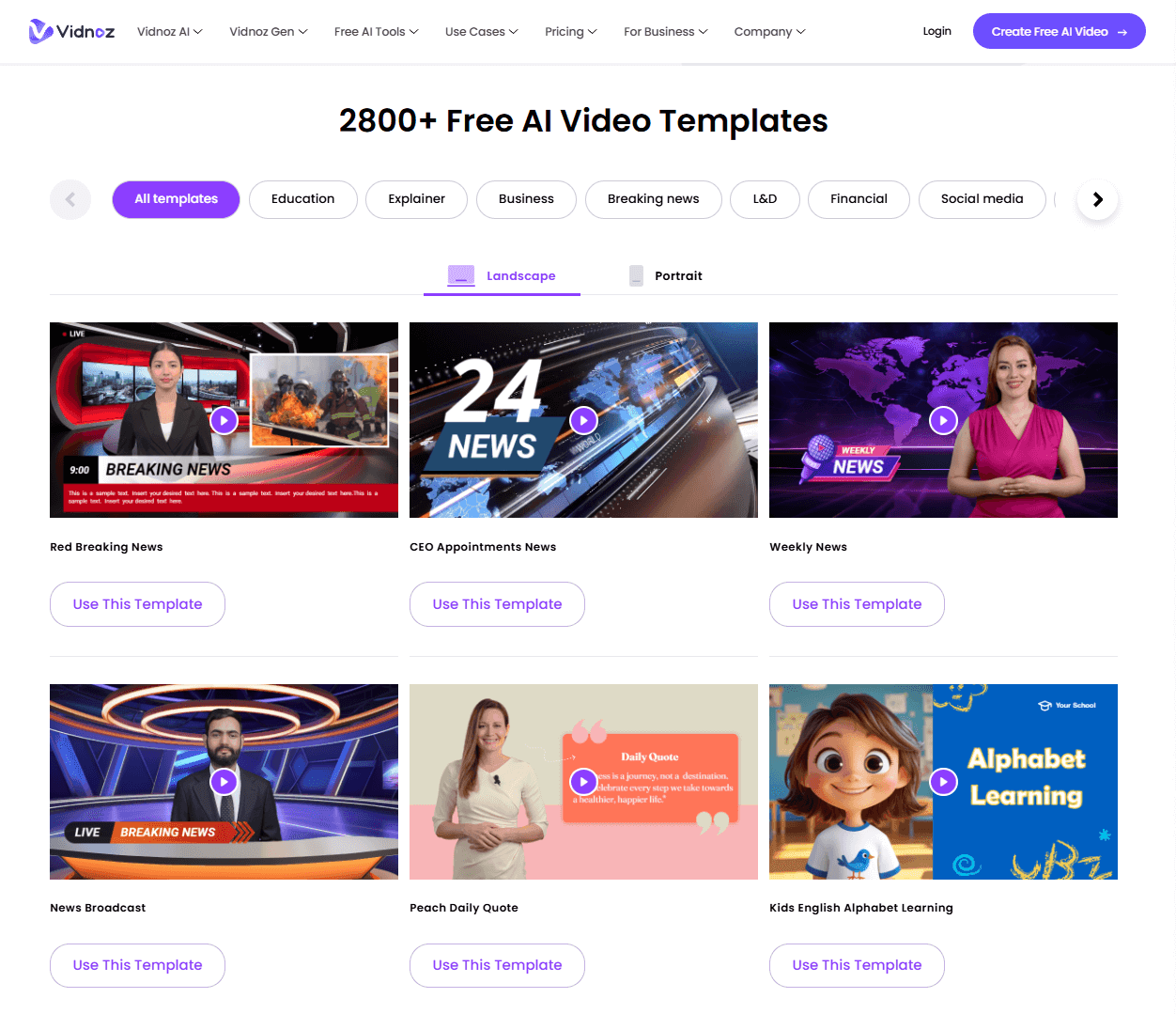
Vidnoz AI music video generator
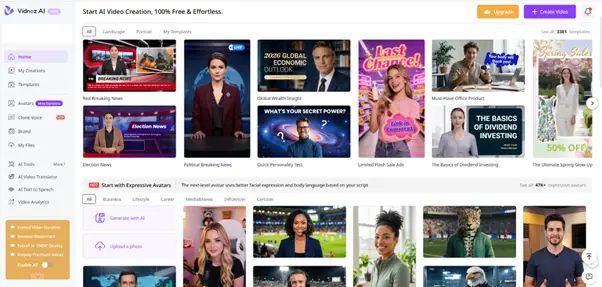
Vidnoz AI Music Video Generator is a browser-based tool designed to turn an existing song into an AI-generated music video with minimal manual editing. Instead of generating individual five- or ten-second clips and assembling them yourself, you upload a track, choose or create a singer, select a visual style, and let Vidnoz build the video around the music.
As of September 2026, the tool supports common audio formats, horizontal and vertical video, custom singer images, different visual styles, and both singer-focused and full-scene videos. Vidnoz also states that videos created with the tool can be used commercially, although you still need rights to any music, photos, logos, or other material you upload.
What Is Vidnoz AI Music Video Generator?
Vidnoz AI Music Video Generator is part of the larger Vidnoz AI/Gen ecosystem. Its main purpose is straightforward: upload an audio track and automatically create a visual music video around it.
The generator attempts to match visual changes, scenes, transitions, and performer animation with the rhythm and mood of the song. Vidnoz describes the system as analyzing the music and synchronizing generated visuals with it.
It is aimed primarily at people who want a fast result without learning tools such as Premiere Pro, After Effects, DaVinci Resolve, or more complicated AI-video workflows.
It can be particularly useful for:
- AI-generated songs
- YouTube music channels
- TikTok and YouTube Shorts
- lyric and promotional videos
- independent musicians
- experimental music clips
- social-media releases
- demo music videos before investing in a professional production
The biggest attraction is that the workflow is much closer to “upload song → choose appearance → generate” than traditional video production.
How Vidnoz AI Music Video Generator Works
Step 1: Open the Music Video Generator
Go to the dedicated Vidnoz AI Music Video Generator page.
Vidnoz AI Music Video Generator
Everything runs inside a web browser, so there is no desktop application to install.
You can experiment with sample music or upload your own track.
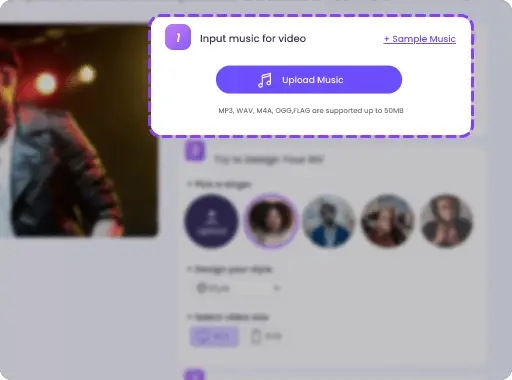
Step 2: Upload Your Song
Vidnoz currently lists support for:
MP3, WAV, M4A, OGG and FLAC.
After uploading your track, an audio timeline appears.
You can select the section of the song you want to use.
The minimum clip length shown by Vidnoz is 10 seconds.
This trimming option is especially useful for testing the generator. Instead of spending credits or processing time on an entire song, try the chorus or another 20–40 second section first.
Step 3: Choose an AI Singer
Vidnoz provides two main approaches.
Use a preset singer
You can select one of the available AI performers.
This is the quickest option because you don’t need to prepare an image.
Create a custom singer
You can upload a photograph and use that person or AI-created character as the visual performer.
Vidnoz recommends using an image with:
- a clearly visible front-facing face
- good, even lighting
- a neutral facial expression
- closed mouth
- no obstruction covering the face
- image size of up to 10 MB
The tool specifically warns that cartoon-style faces may not produce optimal results.
For a recurring YouTube music channel, a custom AI performer is one of the more interesting features because you can potentially reuse the same fictional singer across multiple videos.
Step 4: Pick the Visual Style
You can then choose the overall visual style of the music video.
The exact options can change, but Vidnoz promotes looks ranging from cinematic and dramatic to modern or more stylized themes.
This decision matters more than it initially appears.
For example, a slow emotional song usually works better with:
cinematic lighting, slower camera movement, close-ups and atmospheric scenes.
A fast electronic song generally benefits from:
rapid cuts, stronger camera movement, neon environments and more dynamic scenery.
One-click generators still have limited understanding of storytelling, so matching the style to the music yourself usually improves the result.
Step 5: Choose the Aspect Ratio
Vidnoz currently offers:
16:9 — best for normal YouTube videos.
9:16 — best for YouTube Shorts, TikTok and Instagram Reels.
For a full YouTube music video, I would use 16:9.
For testing a song or promoting a chorus, generate a separate 9:16 version.
Avoid simply cropping a horizontal video into vertical afterward if the performer is important—the singer may end up outside the ideal frame.
Step 6: Choose Singer Only or Full Scene
This is one of Vidnoz’s most useful controls.
Singer Only
The video focuses primarily on the AI performer.
This is useful for:
- vocals
- ballads
- virtual singers
- singer-focused Shorts
- lip-sync content
Full Scene
Vidnoz incorporates more environmental shots and B-roll-style visuals.
This usually feels more like a conventional music video.
Vidnoz notes that Full Scene generation can require more processing time.
For a complete three-minute song, I would normally choose Full Scene unless your channel revolves around a recognizable virtual performer.
Step 7: Generate the Video
Press Generate Video and Vidnoz processes the song and visuals.
Generation time depends on factors such as video duration, server load, account type and selected generation mode.
Paid plans advertise faster processing, with the dedicated Music Video Generator page currently promoting up to 2× faster generation after upgrading.
The Important One-Minute Limitation
This is one of the biggest things to know before using Vidnoz.
The Music Video Generator currently displays an upgrade message when the selected clip exceeds one minute.
Vidnoz describes paid access as enabling longer/full-length music videos rather than the one-minute limitation of the basic experience.
Therefore, although Vidnoz markets the generator as free, the free version should be viewed primarily as a trial/testing option, not necessarily a practical way to generate an entire three- or four-minute song.
This is important because “free AI music video generator” can sound like unlimited complete music videos, which is not what the current interface suggests.
Is Vidnoz Really Free?
There is a free tier, but the AI-generation ecosystem now uses credits and places limitations on free use.
Vidnoz’s current Gen pricing documentation lists the Music Video Generator as limited on the free plan. Paid options currently include credit allocations such as 180, 500 and 800 monthly credits, depending on the plan displayed to the user. The pricing page lists approximate credit costs spanning about $0.031–$0.072 per credit, though exact subscription prices and promotions can change.
Paid access also advertises features such as:
- longer videos
- faster generation
- no watermark
- additional AI tools
- permanent/unlimited storage on applicable plans
- access to more generation models/features
Because Vidnoz frequently runs promotional pricing, I would check the final checkout price rather than relying on an old review or YouTube video.
Does Vidnoz Put a Watermark on Videos?
The current Music Video Generator page specifically promotes “No Watermark” as an upgrade benefit.
That means creators planning serious YouTube publishing should verify the export conditions of the free generation before building a workflow around it.
For casual testing this isn’t a major issue.
For monetized content, music releases or client work, watermark-free exports are considerably more important.
Can You Use Vidnoz Music Videos Commercially?
Vidnoz currently labels the generated output:
“This AI music video is free for commercial use.”
Its AI Music Generator similarly describes generated songs as royalty-free and available for commercial use.
However, that does not automatically clear third-party material.
If you upload someone else’s commercial song, celebrity photograph, copyrighted artwork or protected logo, Vidnoz giving you permission to use its generated output does not give you ownership of those underlying assets.
For YouTube, the safest workflow is:
your own music / properly licensed music + your own or licensed character image + AI-generated visuals.
Video Quality
This is where expectations need to be realistic.
Vidnoz’s advantage is automation, not maximum cinematic control.
You can get visually impressive sequences without manually prompting dozens of individual clips, but fully automated systems still commonly struggle with:
- facial consistency
- hands and fingers
- accessories changing between shots
- clothing changing
- backgrounds morphing
- unnatural body movement
- lip-sync imperfections
- repeated visual patterns
- weak narrative continuity
This isn’t unique to Vidnoz. Recent AI-music-video discussions continue to note that even high-end video models often require significant manual work to produce a coherent full music video. Creators discussing tools such as Kling, Runway and Veo praise their shot quality but still report character-consistency and editing challenges.
Does Vidnoz Synchronize the Video to the Beat?
Vidnoz says its music-video system analyzes the rhythm and mood of uploaded audio and creates corresponding visual transitions.
That is useful, but don’t expect the same precision as manually editing every cut in CapCut, Premiere Pro or DaVinci Resolve.
For casual music videos, automatic synchronization can look convincing.
For EDM drops, precise choreography or videos where every beat must trigger a visual event, manual editing still gives you significantly more control.
A good workflow is therefore:
Vidnoz generates the base music video → CapCut performs the final edit.
Best Workflow for YouTube
If I were creating an AI music channel with Vidnoz, I would not simply upload the raw generation.
I would use this workflow:
- Generate the song.
- Export the final WAV or high-quality MP3.
- Prepare a consistent AI singer image.
- Test 20–30 seconds of the chorus in Vidnoz.
- Adjust the character/style if necessary.
- Generate the full video.
- Import it into CapCut.
- Remove obviously bad AI shots.
- Add extra B-roll or image-to-video scenes.
- Add manual cuts on important beats.
- Apply subtle color correction.
- Add opening and ending titles if needed.
- Export at 1080p.
- Create a separate 9:16 promotional Short.
This reduces the biggest weakness of one-click AI music-video systems: they tend to look repetitive when watched continuously for several minutes.
How to Make Vidnoz Videos Look Less AI-Generated
This is especially important if the video is going onto YouTube.
Avoid relying on one continuous AI singer shot.
Use a mixture of:
- close-ups
- medium shots
- environmental shots
- silhouettes
- wide establishing shots
- abstract B-roll
- objects related to the lyrics
- city/environment footage
- atmospheric cutaways
Short AI clips tend to hide artifacts better than long shots.
A useful rule is to change visuals roughly every 2–5 seconds, with occasional longer shots during slower musical sections.
You can also cover imperfect transitions with:
- flashes
- zoom transitions
- motion blur
- lens flare
- light leaks
- camera shake
- foreground overlays
Just don’t overdo them. Excessive effects often make AI videos look even cheaper.
Vidnoz AI Music Generator Integration
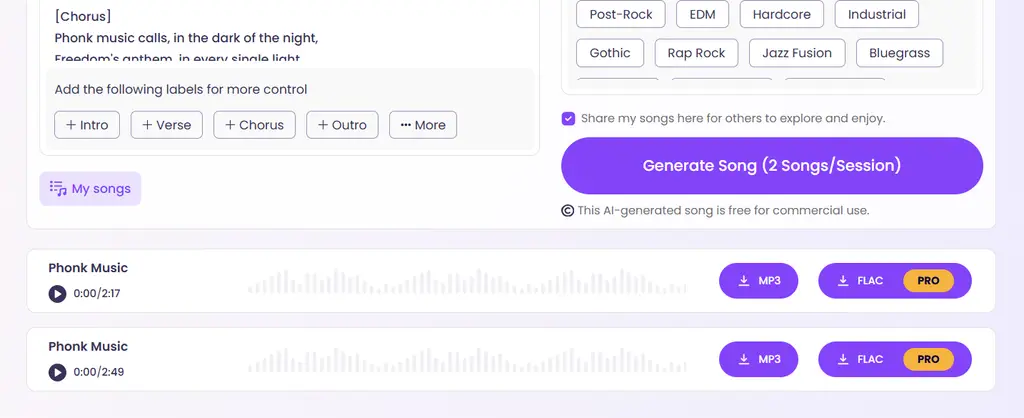
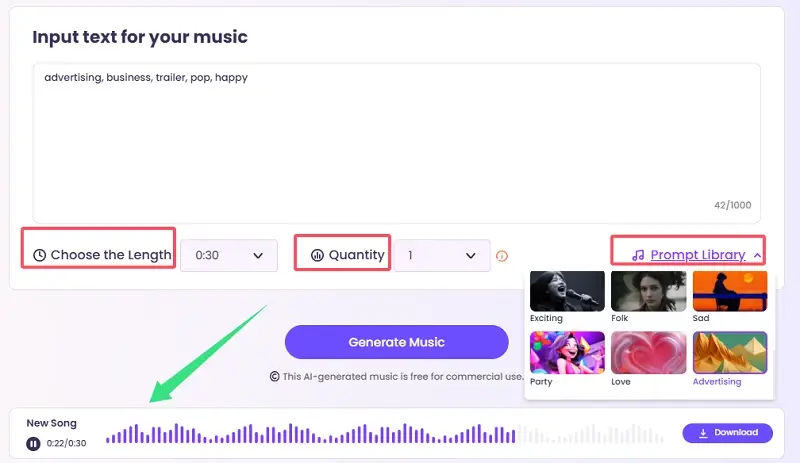
Another useful part of the ecosystem is that Vidnoz also has its own AI Music Generator.
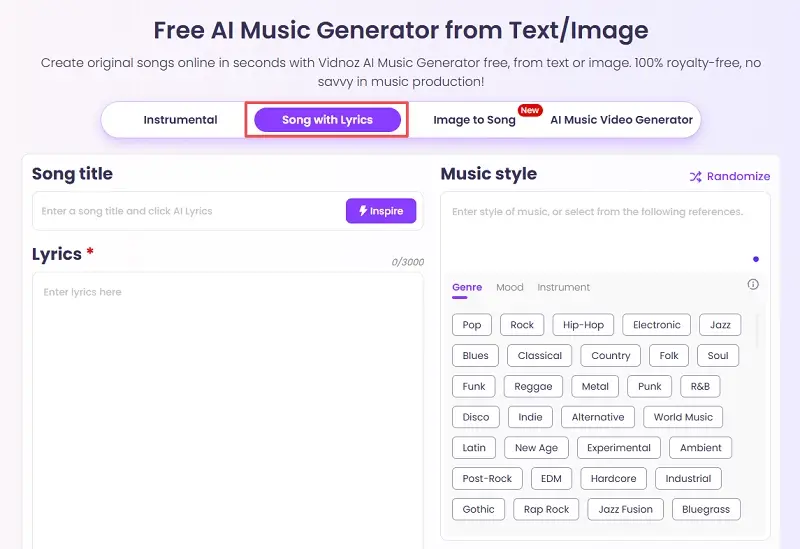
It currently supports:
- instrumental tracks
- songs with lyrics
- image-to-song
- reference tracks
- genre selection
- mood
- instruments
- male/female vocals
- song structure controls such as Intro, Verse, Chorus and Outro
The tool offers durations ranging from short clips up to around two minutes within the interface currently indexed, and Vidnoz promotes the music as royalty-free. It can then send the result into the Music Video Generator.
So theoretically you can perform the entire workflow inside Vidnoz:
prompt → song → singer → music video.
For beginners, that is attractive.
For more serious music production, a specialized music generator combined with Vidnoz for visuals will often give you greater control.
Main Advantages
- Very easy to use
You don’t need video-editing experience or knowledge of complicated prompting.
- Fast workflow
Creating an entire visual concept manually with AI video generators can require dozens of prompts. Vidnoz automates much of this.
- Custom AI singer
Uploading a face makes it possible to develop a recurring fictional performer.
- Horizontal and vertical formats
16:9 and 9:16 cover the main YouTube and short-form formats.
- Built-in audio trimming
You can test a small part of your song before committing to a longer generation.
- Commercial-use positioning
Vidnoz explicitly states that the music-video output is available for commercial use, subject of course to rights in the assets you supply.
- Part of a larger AI toolkit
Paid Vidnoz Gen access also covers tools including image-to-video, text-to-video, face swap, AI effects and image generation.
Main Disadvantages
- The free version is quite limited
The one-minute threshold means that a typical full song will generally push you toward paid access.
- Less creative control
You don’t control every camera angle and scene like you would when generating shots individually.
- AI inconsistencies remain visible
Faces, clothing, environments and movement can change unexpectedly.
- Full videos may feel repetitive
This is a common problem with automatic music-video generators.
- Results depend heavily on the source image
A poor custom-singer image can produce noticeably weaker animation.
- Serious videos still benefit from editing
For a polished YouTube upload, CapCut, Premiere or DaVinci Resolve remains useful.
Vidnoz vs Traditional AI Video Generators
Vidnoz is fundamentally different from tools such as Kling or Runway.
| Feature | Vidnoz Music Video | Kling/Runway-style workflow |
|---|---|---|
| Full song automation | Strong | Limited |
| Ease of use | Very easy | More complicated |
| Individual shot quality | Good/variable | Often stronger |
| Character control | Moderate | Potentially stronger with careful workflow |
| Beat-based automation | Built in | Usually manual |
| Editing required | Low–medium | High |
| Creative control | Moderate | High |
| Best for beginners | Yes | Less so |
| Fast music-video production | Excellent use case | More work |
Recent creators discussing AI music videos frequently praise models such as Kling for cinematic motion and Runway for reliability, while also pointing out that producing an entire coherent music video with them requires substantial manual assembly.
That difference essentially defines Vidnoz’s appeal.
Who Should Use Vidnoz?
Vidnoz makes the most sense for someone who says:
“I already have a song and I need a decent-looking video quickly.”
It is particularly suitable for:
- new YouTube music channels
- AI musicians
- independent artists
- creators uploading songs frequently
- social-media marketers
- testing musical concepts
- people without video-editing experience
It makes less sense for someone who says:
“I want every shot of my music video to look exactly the way I imagined.”
For that kind of project, manually generating clips with high-end models and editing them yourself remains the stronger workflow.
Is Vidnoz Good for YouTube Monetization?
Using AI to make a video does not by itself guarantee or prevent YouTube monetization. What matters is the nature of the finished channel and content.
For a stronger channel, don’t simply mass-produce nearly identical one-click videos.
Add meaningful creative work such as:
- original music
- custom characters
- distinct visual concepts
- manual editing
- unique thumbnails
- storytelling
- original lyrics
- meaningful differences between videos
This also makes the channel substantially more appealing to viewers.
Is Vidnoz Good for YouTube Shorts?
Yes—this may actually be one of its strongest applications.
Because Vidnoz supports 9:16, you can take the strongest 20–40 seconds of a song, typically the chorus, and build a vertical AI music clip around it.
Short-form content also hides AI-generation inconsistencies much better than a four-minute video.
For example:
0:00–0:02 — strong visual hook
0:02–0:08 — singer
0:08–0:15 — cinematic B-roll
0:15–0:25 — chorus/drop
0:25–0:30 — strongest final shot
That can work very well for promoting a longer track.
Current Community Reality Around One-Click AI Music Videos
There is an important distinction between convenience and top-tier quality.
Recent discussions among AI-music creators show enthusiasm for AI-generated music videos, but also skepticism toward completely automated “one-click” generators. Some creators prefer assembling individual shots because that gives them more consistency and artistic control.
That criticism is worth considering.
Vidnoz’s strength is precisely the feature some advanced creators dislike: automation.
If you want speed, that’s good.
If you want film-director-level control, it becomes a limitation.
Vidnoz AI Music Video Generator Review
Based on its current feature set, official limitations and how today’s AI-video ecosystem compares, I would break it down like this:
| Category | Assessment |
|---|---|
| Ease of use | Excellent |
| Setup speed | Excellent |
| Beginner friendliness | Excellent |
| AI singer feature | Very useful |
| Full-video automation | Very good |
| Visual consistency | Average |
| Fine creative control | Limited |
| Free-plan usefulness | Good for testing |
| YouTube Shorts | Very good |
| Professional music videos | Requires additional editing |
| Value | Depends heavily on how many videos you generate |
Overall: 8/10 for convenience
As an automatic music-video creator, Vidnoz is genuinely interesting because it removes much of the tedious process of building dozens of AI shots manually.
But I would not consider it a complete replacement for video editing.
For the best result, think of Vidnoz as the AI cinematographer that creates your raw footage, while CapCut or another editor is where you turn that footage into the final music video.
Final Verdict
Vidnoz AI Music Video Generator is best for creators who value speed and simplicity over precise cinematic control.
Its biggest strengths are the custom AI singer, automatic music synchronization, full-scene option, 16:9/9:16 support and extremely simple workflow. Its biggest weaknesses are the free-version limits and the usual consistency problems associated with automated AI video.
For quick YouTube videos, AI music channels, promotional videos and Shorts, it makes a lot of sense.
For an important music release where visual quality is the priority, I would instead use a hybrid workflow:
Vidnoz + manually generated premium AI clips + CapCut/DaVinci editing.
That gives you the speed advantage of Vidnoz without being locked into whatever the one-click generator decides to produce.
Bottom line: Vidnoz is one of the easier ways to turn a finished song into an AI music video without learning complicated AI-video tools, but the best-looking results still come from treating its output as a starting point rather than the finished product.
READ ALSO: How to Speed Up Your Computer?
Hi, this is Masab, the owner and founder of the PC Wire. I’m a PC enthusiast who loves to talk about computers. I have been testing PC hardware for several years now, and I hope my knowledge would answer your queries thoroughly.