
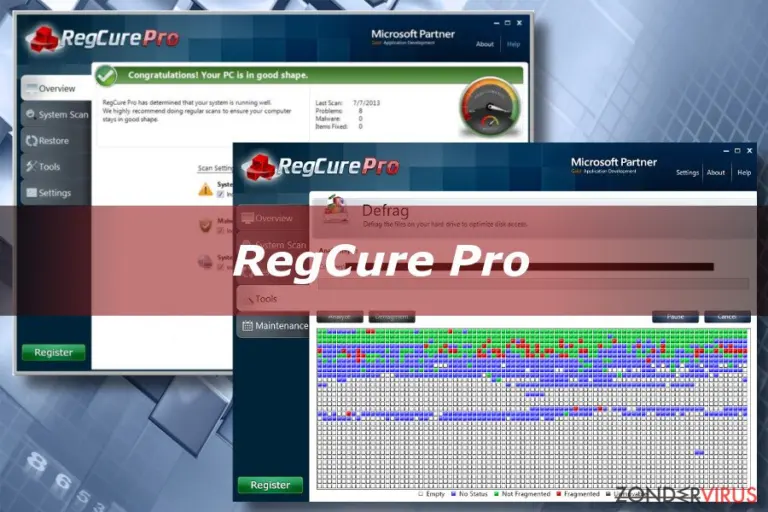
RegCure Pro Review
RegCure Pro is a Windows PC optimization utility developed by ParetoLogic. It was designed to clean the Windows registry, remove unnecessary files, manage startup applications, and help improve overall computer performance.
But is RegCure Pro actually effective? Can it speed up a slow computer, and is it safe to use on Windows 10 or Windows 11?
Quick verdict: RegCure Pro offers several traditional PC maintenance features, but its registry-cleaning approach is outdated, and historical security detections raise concerns. For most Windows users, modern built-in maintenance tools are safer and more practical.
What Is RegCure Pro?
RegCure Pro is a system optimization program originally created to help Windows users identify and resolve common computer maintenance issues.
Its primary feature is registry cleaning. The Windows registry is a database that stores settings for the operating system, installed programs, hardware components, and user preferences.
Over time, installing and uninstalling programs may leave unused registry entries behind. RegCure Pro attempts to identify these entries and remove them.
The software also offered additional maintenance functions, including startup optimization, temporary-file removal, disk defragmentation, and system scanning.
RegCure Pro at a glance
| Category | Details |
|---|---|
| Software | RegCure Pro |
| Developer | ParetoLogic |
| Primary purpose | Windows optimization and registry cleaning |
| Operating system | Windows |
| Main features | Registry scanning, junk cleanup, startup management |
| Historical licensing | Limited trial and paid functionality |
| Windows 11 compatibility | Not reliably verified |
| Current official pricing | Not reliably verified |
| Overall recommendation | Not recommended for modern PCs |
Historical reviews describe these functions, but they do not establish that the software is actively maintained or compatible with current Windows releases.
RegCure Pro Features Explained
Registry cleaning and repair
Registry cleaning is RegCure Pro’s central feature.
The program was designed to scan for potentially unnecessary registry entries, including:
- References to uninstalled applications.
- Invalid file associations.
- Outdated software configuration entries.
- Missing file paths.
- Orphaned application settings.
After scanning, the software presents detected issues and offers options for cleaning them.
Does registry cleaning improve performance?
Usually, not significantly. Windows can generally function normally with unused registry entries, and deleting these entries rarely produces a noticeable speed improvement.
Microsoft explicitly does not support the use of registry cleaning utilities and warns that incorrect registry modifications can cause serious system problems.
Startup optimization
RegCure Pro also included tools for managing applications that launch automatically when Windows starts.
For example, a computer may load messaging applications, cloud storage utilities, game launchers, and updater services in the background.
Disabling unnecessary startup applications can help:
- Reduce boot time.
- Lower background memory usage.
- Improve responsiveness immediately after startup.
This is one of the more useful functions associated with RegCure Pro. However, Windows 10 and 11 already offer startup management through Task Manager and Settings.
Junk file cleanup
RegCure Pro included features intended to remove temporary and unnecessary files.
These might include application cache files, temporary system files, and other leftover data.
Removing unnecessary files can free up disk space, particularly on devices with small storage drives.
It is important to distinguish freeing storage space from increasing processing speed. File cleanup may help a nearly full computer function better, but deleting temporary files does not automatically improve CPU or GPU performance.
Disk defragmentation
Historical versions included a defragmentation tool for traditional hard disk drives.
Defragmentation reorganizes fragmented data so that mechanical drives can access files more efficiently.
However, modern computers frequently use SSDs, which should be optimized through Windows’ drive optimization features rather than treated like traditional hard disks.
Windows automatically handles appropriate optimization for supported drive types.
Malware scanning
Some historical reviews advertised malware and spyware detection as RegCure Pro features.
However, there is no sufficiently verified evidence here to establish that RegCure Pro offers modern, independently tested malware protection.
It should not replace Microsoft Defender Antivirus or another reputable, actively maintained security product.
How Does RegCure Pro Work?
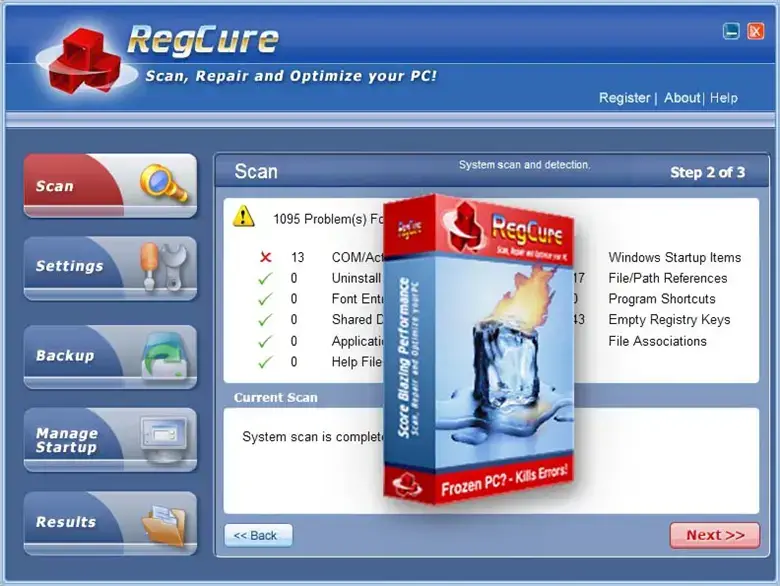
RegCure Pro’s traditional maintenance workflow involved several stages.
- Step 1: System scan
Search registry entries and supported maintenance categories
- Step 2: Review detected issues
Display a summary of potential registry and system problems
- Step 3: Apply maintenance actions
Remove selected entries or perform other supported cleanup operations
- Step 4: Check system behavior
Restart if necessary and verify that Windows and applications still work correctly
This describes the intended workflow, not a recommendation to run RegCure Pro.
An important limitation of registry cleaners is that the number of issues detected is not a reliable measure of system health. Finding hundreds of unused entries does not necessarily mean that a computer has hundreds of meaningful problems.
Is RegCure Pro Safe?
This is the most important part of the review.
Microsoft previously classified certain versions of RegCure as Misleading:Win32/RegCure, stating that some versions could display deceptive claims about registry problems and other computer issues.
Separately, security telemetry from GridinSoft has classified particular RegCure Pro executable samples as potentially unwanted programs (PUPs).
A PUP classification does not automatically mean every version is malicious or that the software steals user data. It does, however, justify caution, especially with old installers distributed through third-party download sites.
There are also general risks associated with registry cleaning:
- Deleting entries required by Windows or installed applications.
- Causing programs to malfunction.
- Introducing instability instead of fixing it.
- Making troubleshooting more difficult.
- Installing outdated software with uncertain compatibility.
Our assessment: The combination of historical security concerns, unclear current maintenance status, and limited performance benefits makes RegCure Pro a poor choice for modern Windows systems.
RegCure Pro Performance Review
Does RegCure Pro actually make a computer faster?
The answer depends on which optimization feature is being used and what is causing the computer to run slowly.
For instance, reducing unnecessary startup programs may make a noticeable difference on an older laptop. Removing unused registry entries, however, generally provides little measurable improvement.
Expected performance impact
| Feature | Potential benefit | Assessment |
|---|---|---|
| Registry cleaning | Usually minimal | Low value |
| Startup management | Faster startup when unnecessary apps are disabled | Useful |
| Junk file cleanup | More available storage | Useful |
| Disk defragmentation | Potentially better HDD performance | Useful for HDDs |
| Malware scanning | Unverified modern effectiveness | Not recommended |
| General PC optimization | Depends on the actual problem | Inconsistent |
These are assessments of the underlying maintenance techniques, not results from a new benchmark of RegCure Pro.
An older review reported significant startup improvements after using RegCure Pro, but the review also involved disabling startup applications. Consequently, it cannot establish how much improvement came from registry cleaning alone.
RegCure Pro Pros and Cons

Pros
- Combined several maintenance functions in one interface.
Offered automatic scanning rather than requiring manual registry inspection.
Included practical startup management tools.
Could identify temporary files and other cleanup opportunities.
Was designed to be accessible to users without advanced technical knowledge.

Cons
- Registry cleaning offers limited real-world performance benefits.
Incorrect registry changes can damage Windows functionality.
Certain versions have received security-related detections.
Current Windows 11 compatibility is uncertain.
Most useful maintenance features are already available in Windows.
Old installers from third-party websites may introduce additional security risks.
Current official support and licensing availability are unclear.
RegCure Pro Pricing and Availability in 2026
RegCure Pro historically used a commercial licensing model with limited trial functionality and paid repair features.
However, as of October 2026, I could not verify a current, maintained official RegCure Pro storefront or a reliable current subscription price.
That means older prices displayed on software download websites should not be treated as current offers.
I would avoid paying for a license or downloading an installer from an unofficial software archive unless the publisher and file authenticity can be independently verified.
Best RegCure Pro Alternatives
Most people looking at RegCure Pro actually want to fix a slow computer, remove unnecessary files, or reduce startup time.
Fortunately, there are better-supported tools for these tasks.

Microsoft PC Manager
- Best for general PC cleanup.
- A Microsoft utility with tools for freeing storage, managing startup applications, and basic maintenance.
- Price: Free
- Official website

Microsoft Defender Antivirus
- Best for malware protection.
- Built into supported Windows installations and designed for contemporary security threats.
- Price: Included with Windows
- Microsoft Windows Support

Windows Storage Sense
- Best for automatic temporary-file cleanup.
- Removes selected unnecessary files and helps maintain available disk space.
- Price: Included with Windows
- Official setup guide

Microsoft Sysinternals Autoruns
- Best for advanced startup troubleshooting.
- Provides detailed visibility into applications and components configured to run automatically. More appropriate for experienced users.
- Price: Free
- Official download
How to Speed Up Windows Without RegCure Pro
Here is a practical maintenance guide for Windows 10 and Windows 11.
Step 1: Clean unnecessary files
Open:
Settings → System → Storage → Temporary files
Review the available categories and select the files you want to remove.
You can also enable Storage Sense to automate future cleanup. Carefully review settings for Downloads, Recycle Bin, and cloud files to avoid deleting or offloading anything you still need.
Step 2: Disable unnecessary startup applications
Press Ctrl + Shift + Esc to open Task Manager.
Select Startup apps, identify nonessential applications, and disable those that do not need to launch automatically.
Do not disable security applications or unfamiliar system components without checking what they do.
Step 3: Run a malware scan
Open Windows Security → Virus & threat protection → Scan options.
Choose a full scan to check the computer for potentially harmful software.
Step 4: Update Windows
Go to Settings → Windows Update and check for available updates.
Security patches and supported hardware drivers can resolve stability problems and improve compatibility.
Step 5: Identify the actual performance bottleneck
Open Task Manager and examine CPU, Memory, and Disk utilization.
A constantly overloaded CPU, insufficient RAM, nearly full storage drive, or failing hardware requires a different solution from ordinary temporary-file cleanup.
This diagnostic approach is usually more effective than deleting registry entries indiscriminately.
How to Uninstall RegCure Pro
If RegCure Pro is already installed, you can remove it through Windows.
- Open Settings → Apps → Installed apps.
- Search for RegCure Pro or ParetoLogic.
- Select the application and choose Uninstall.
- Follow the removal instructions.
- Restart the computer.
- Open Windows Security and perform a full malware scan.
If the software continues to display notifications, check your installed programs and startup entries for unwanted components.
Avoid manually deleting arbitrary registry keys in an attempt to remove RegCure Pro. Microsoft provides official application-uninstallation guidance for Windows 10 and 11.
Final Verdict: Is RegCure Pro Worth It in 2026?
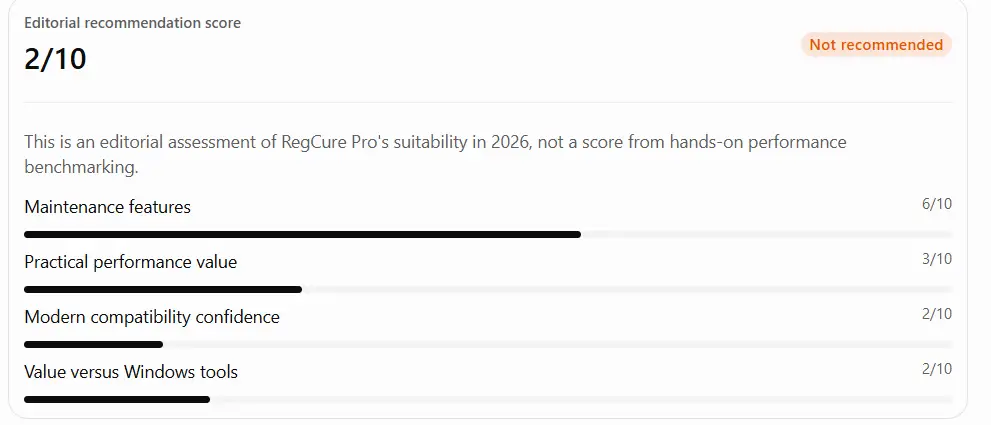
RegCure Pro represents an older generation of Windows optimization software. Its main selling point—automated registry cleaning—provides limited benefits for most modern computers, while potentially introducing unnecessary stability and security risks.
Some of its other functions, especially startup management and temporary-file cleanup, remain useful. However, these features are already available through Microsoft’s own utilities.
The bottom line: If your goal is to improve PC performance in 2026, skip RegCure Pro. Start with Windows Storage Sense, Task Manager, Windows Security, and Microsoft PC Manager. They address common maintenance problems without relying on aggressive registry cleaning.
A well-maintained Windows installation does not need routine third-party registry cleaning to run efficiently.

Hi, this is Masab, the owner and founder of the PC Wire. I’m a PC enthusiast who loves to talk about computers. I have been testing PC hardware for several years now, and I hope my knowledge would answer your queries thoroughly.