
How to Speed Up Your Computer?
A slow computer can be frustrating, whether you’re working, gaming, editing videos, or simply browsing the web. Fortunately, you don’t always need to buy a new PC. In many cases, a few optimizations can dramatically improve performance.
Why Computers Become Slow
A computer rarely slows down for just one reason. Usually it’s a combination of factors, including:
- Too many startup applications
- Insufficient RAM
- Nearly full storage drive
- Malware
- Outdated operating system
- Aging hard drive (HDD)
- Background software consuming resources
- Driver issues
- Overheating
- Hardware limitations
The first step is identifying which of these affects your computer.
Step 1: Restart Your Computer
Many users leave their computers running for days or weeks.
Restarting:
- Clears temporary memory
- Stops frozen processes
- Ends memory leaks
- Resets drivers
- Installs pending updates
A simple reboot can noticeably improve performance.
Step 2: Check Task Manager (Windows)
Press:
Ctrl + Shift + Esc
Look for programs using:
- High CPU
- High Memory
- High Disk
- High GPU
Sort each column from highest to lowest.
Common performance hogs include:
- Chrome with dozens of tabs
- Game launchers
- Video editors
- Cloud syncing software
- Antivirus scans
- Windows Update
Close applications you don’t need.
Step 3: Disable Startup Programs
Many apps launch automatically when Windows starts.
Examples:
- Spotify
- Discord
- Adobe Creative Cloud
- Steam
- Microsoft Teams
- Zoom
To disable them:
Task Manager → Startup Apps
Disable unnecessary items.
This often reduces boot time dramatically.
Step 4: Free Up Disk Space
If your storage is nearly full, performance suffers.
Aim to keep:
- At least 15–20% free space
Delete:
- Old downloads
- Duplicate files
- Temporary files
- Large videos
- Old installers
Windows Disk Cleanup can safely remove:
- Temporary files
- Windows Update cache
- Recycle Bin contents
Step 5: Uninstall Programs You Don’t Use
Many computers accumulate software over time.
Go to:
Settings → Apps
Remove:
- Trial software
- Old games
- Toolbars
- Utilities you never use
Less installed software often means:
- Fewer background services
- Faster boot times
- Lower memory usage
Step 6: Scan for Malware
Viruses and unwanted software commonly slow computers.
Use:
- Microsoft Defender
- Malwarebytes
- Bitdefender
- ESET
- Norton
Run a full system scan.
Remove any detected threats.
Step 7: Update Your Operating System
Updates improve:
- Performance
- Security
- Driver compatibility
- Bug fixes
Windows:
Settings → Windows Update
macOS:
System Settings → Software Update
Linux:
Update through your package manager.
Step 8: Update Drivers
Old drivers can reduce performance.
Update:
- Graphics drivers
- Chipset drivers
- Network drivers
- Storage drivers
For gaming PCs, graphics drivers are especially important.
Step 9: Reduce Visual Effects
Animations consume system resources.
Windows:
System Properties
→ Advanced
→ Performance Settings
Choose:
Adjust for best performance
Or disable only:
- Transparency
- Animations
- Shadows
Older computers often become noticeably more responsive.
Step 10: Manage Browser Performance
Modern browsers can consume several gigabytes of RAM.
Tips:
- Close unused tabs
- Remove unnecessary extensions
- Clear cache
- Disable background apps
- Restart browser regularly
Consider enabling:
- Memory Saver (Chrome)
- Sleeping Tabs (Edge)
Step 11: Upgrade from HDD to SSD
This is often the single biggest performance upgrade.
Typical improvements:
| Task | HDD | SSD |
|---|---|---|
| Windows boot | 60–120 sec | 10–20 sec |
| Program launch | Slow | Instant |
| File loading | Slow | Very fast |
| Updates | Much slower | Faster |
If your computer still uses a mechanical hard drive, installing an SSD can make it feel like a new machine.
Step 12: Add More RAM
Insufficient memory forces the operating system to use the disk as virtual memory.
Signs you need more RAM:
- Browser freezes
- Slow multitasking
- Frequent disk activity
- Editing photos is sluggish
- Video editing struggles
Recommended amounts:
- 8 GB – Basic use
- 16 GB – Most users
- 32 GB – Gaming, editing, development
- 64 GB+ – Professional workloads
Step 13: Check CPU Temperature
Overheating causes processors to slow themselves down (thermal throttling).
Use tools like:
- HWMonitor
- Core Temp
- HWiNFO
Typical temperatures:
Idle:
30–50°C
Heavy load:
70–90°C
Above 95°C:
Performance may decrease significantly.
Step 14: Clean Dust
Dust blocks airflow.
Every 6–12 months:
- Clean fans
- Remove dust from heatsinks
- Clean air filters
- Ensure vents aren’t blocked
Better cooling improves both performance and hardware longevity.
Step 15: Check Background Processes
Some software constantly runs in the background.
Examples:
- Cloud backups
- RGB software
- Printer utilities
- Update checkers
- Telemetry apps
Disable software you don’t actively use.
Step 16: Optimize Power Settings
On Windows:
Settings
→ Power
Choose:
- Balanced
- High Performance (desktop)
- Best Performance (laptops while plugged in)
Power-saving modes intentionally reduce CPU performance to extend battery life.
Step 17: Defragment HDD (Not SSD)
If using a traditional hard drive:
Run:
Defragment and Optimize Drives
This reorganizes fragmented files for faster access.
Do not manually defragment SSDs, as modern operating systems already optimize them appropriately.
Step 18: Close Resource-Heavy Applications
Some applications are naturally demanding:
- Photoshop
- Premiere Pro
- Blender
- Virtual machines
- Games
- AI software
Avoid running several heavy programs simultaneously unless your hardware supports it.
Step 19: Check Available RAM
Windows:
Task Manager
→ Performance
→ Memory
If RAM usage is consistently above 80–90%, consider:
- Closing applications
- Adding more RAM
Step 20: Replace Aging Hardware
Older hardware eventually reaches its limits.
Upgrading may include:
- SSD
- More RAM
- Faster CPU (if supported)
- Better graphics card
- Newer laptop
Sometimes replacing a 10-year-old PC is more cost-effective than upgrading it.
Speeding Up macOS
Mac users should:
- Remove login items
- Delete unused apps
- Free storage
- Empty Trash
- Update macOS
- Reduce desktop clutter
- Restart regularly
- Check Activity Monitor
- Close unused Safari or Chrome tabs
Speeding Up Linux
Linux users can:
- Disable unnecessary startup services
- Clean package cache
- Remove unused packages
- Update the kernel
- Monitor processes with
toporhtop - Check disk health
Common Myths
“Registry cleaners make Windows faster.”
Generally false. Modern versions of Windows gain little to no measurable performance from registry cleaning, and aggressive cleaners can sometimes cause problems.
“Installing more antivirus software speeds up the PC.”
False.
Running multiple antivirus programs simultaneously often slows the computer.
“More RAM always makes everything faster.”
Not always.
If you rarely exceed your current RAM usage, adding more memory won’t noticeably improve performance.
“Closing background apps every few minutes helps.”
Usually unnecessary.
Windows manages memory efficiently; focus on genuinely resource-intensive or unwanted background programs instead of closing everything indiscriminately.
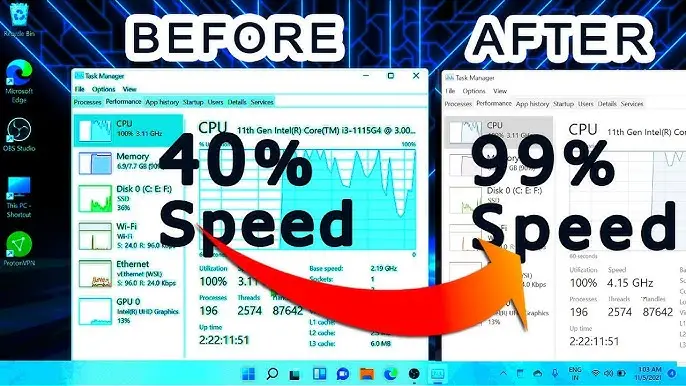
Signs It’s Time to Upgrade
Consider new hardware if:
- Boot time exceeds several minutes despite optimization
- CPU remains at 100% during normal use
- Less than 8 GB RAM for modern workloads
- Mechanical HDD is the primary drive
- Hardware is over 8–10 years old
- Modern applications are no longer supported
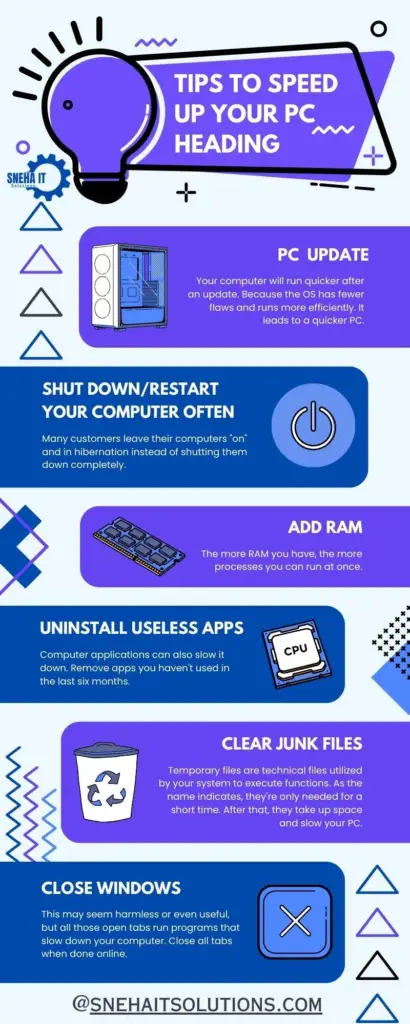
Best Practices for Keeping Your Computer Fast
- Restart your computer regularly.
- Keep at least 20% of your storage free.
- Uninstall software you no longer use.
- Limit startup applications.
- Keep your operating system and drivers up to date.
- Scan periodically for malware.
- Clean dust from the system every 6–12 months.
- Monitor CPU temperatures if you notice slowdowns under load.
- Upgrade to an SSD if you’re still using an HDD.
- Add more RAM if your typical workload frequently exhausts available memory.
READ ALSO: Full and detailed iTubeGo Review

Hi, this is Masab, the owner and founder of the PC Wire. I’m a PC enthusiast who loves to talk about computers. I have been testing PC hardware for several years now, and I hope my knowledge would answer your queries thoroughly.
2 thoughts on “How to Speed Up Your Computer?”